Activating Two-Factor Authentication
How to add two factor authentication (SMS)
1. Click "Personal preferences"
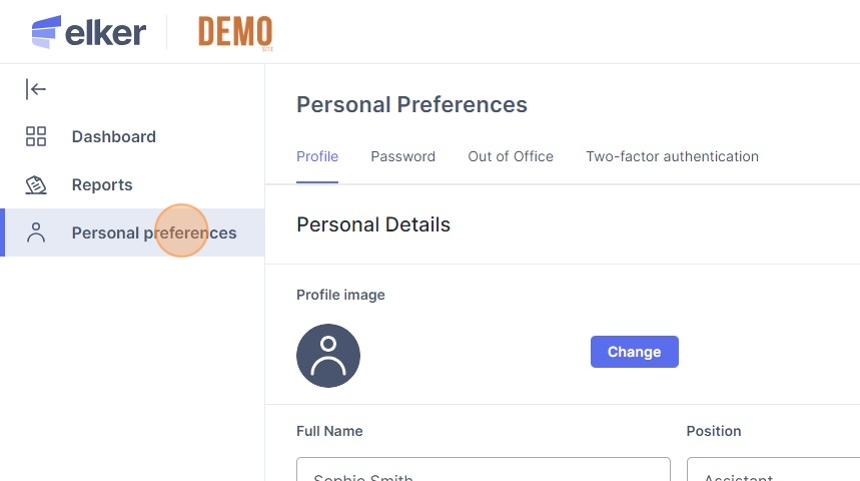
2. Click "Two-factor authentication"
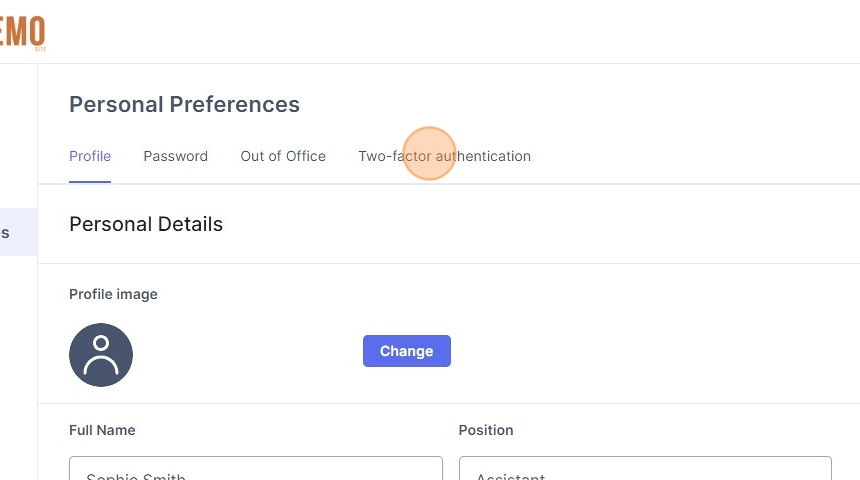
3. Click "Activate" under Phone (SMS)
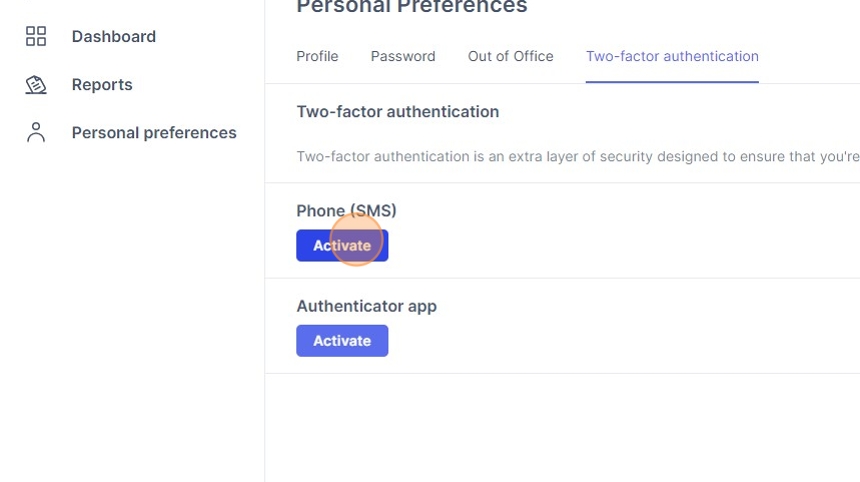
4. Click the "Enter a phone number" field.

5. Type in your phone number
6. Click "Get code"

7. Click the "Enter confirmation code" field.

8. Open your SMS texts on your mobile phone

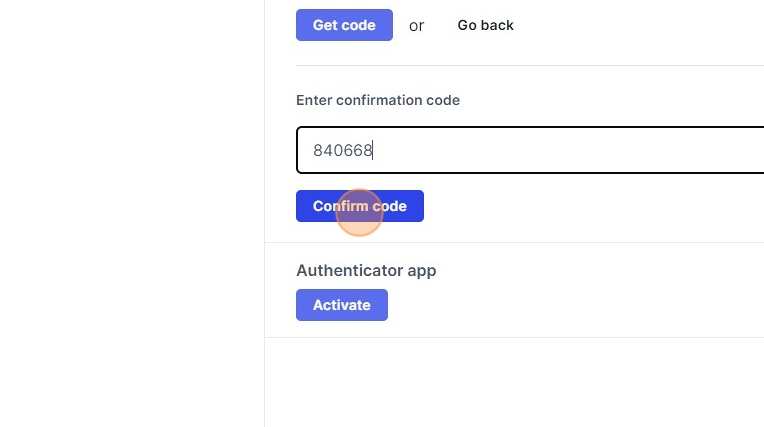
9. Enter the code into your computer
10. Click "Confirm code"
How to activate two factor authentication (app)
Alert: Alert! Please see how to set up the two factor authentication app on your mobile phone steps below for further guidance.
11. Click "Activate"

12. Scan the QR code with the google authenticator app
13. Click the code field.
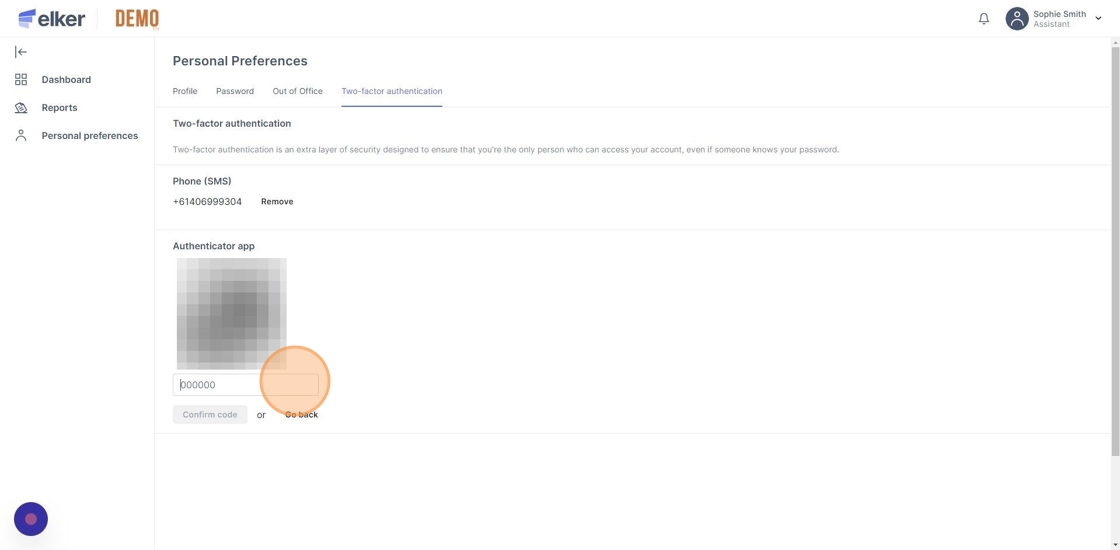
14. Enter the code displayed in the app
15. Click "Confirm code"

How to activate two-factor app on your phone
16. Download the Google Authenticator app
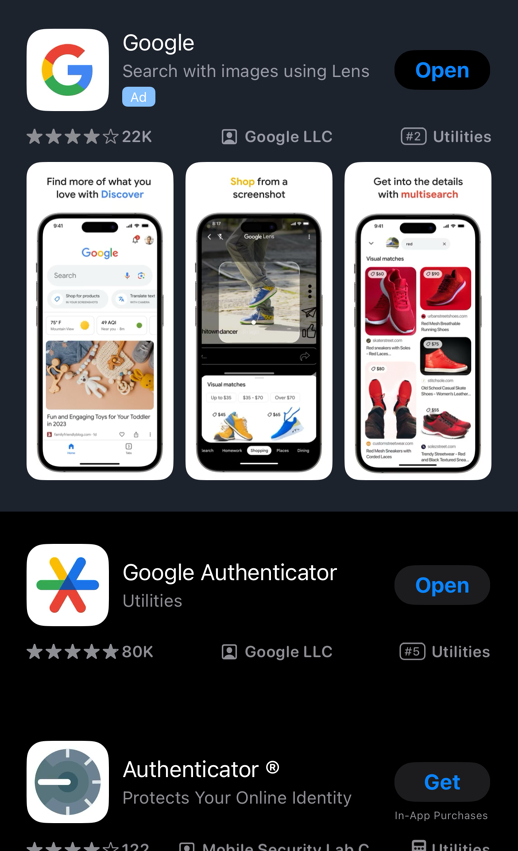
17. Select the Google Authenticator app
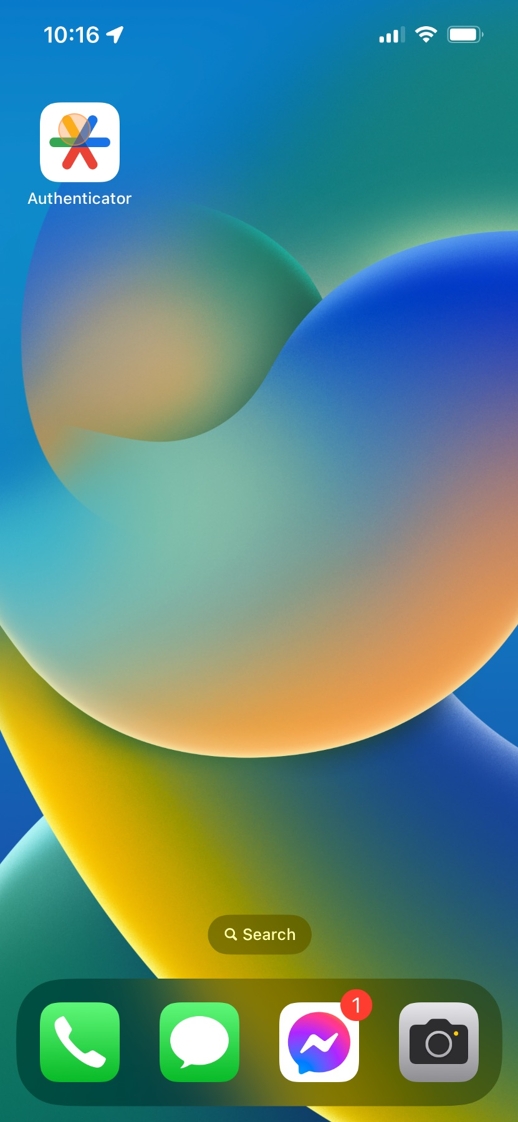
18. Select the + icon

19. Select the phone icon.

20. Use the camera to scan the QR code displayed on your computer

21. Copy the code displayed for your Elker into your computer
