Adding Case Notes
Tip: Case Notes are only visible to the case management team and are never displayed to the reporter.
How to add a case note
1. Click "Reports"

2. Click on the report you'd like to view

Tip: Tip! You will be able to view Case Notes in every tab of the report.
3. Click the "Write a note" field under Case Notes

4. Type in your case note.
5. Click send.

How to edit a case note
6. Click the pen icon below your note you wish to edit.

7. Click the text field.

8. Type in your edits.
9. Click "Save"

Tip: Tip! Click cancel if you do nto wish to save your edits.
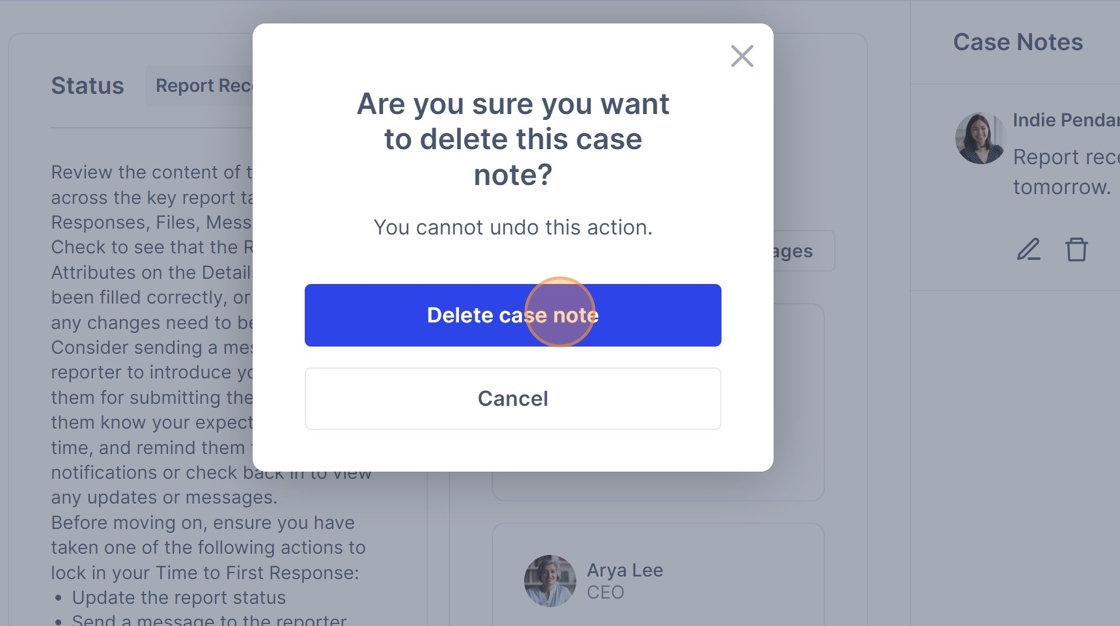
How to delete a case note
10. Click the bin icon.

11. Click "Delete case note"
Viewing case notes
Tip: Tip! The most recent case note will display at the top. Make sure to scroll down to view the rest.
12. Scroll down to view older notes.

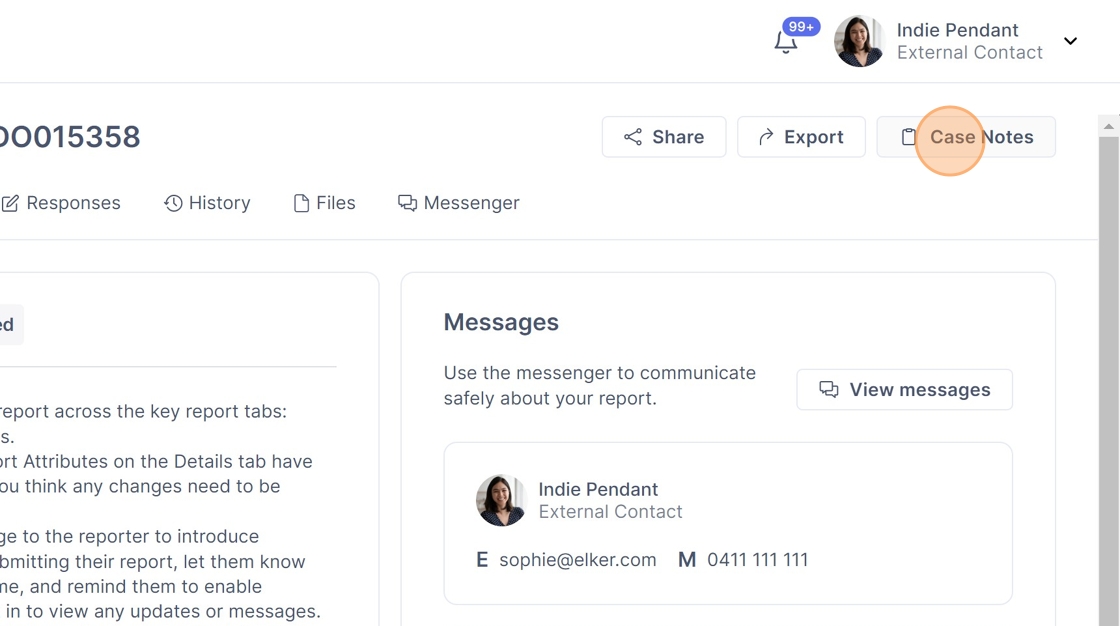
How to open case notes
Alert: Alert! If you cannot see the Case Notes tab, you will need to open it.
13. Click "Case Notes" in the top right corner to open the Case Notes tab.
How to close case notes
Tip: Tip! If you need more space to view the report on your screen, closing the case notes tab will make room.
14. Click the side arrow next to Case Notes to close the tab.
