Create a Reporting Snapshot Template
Snapshot templates create summaries of reports. They can pull in report data automatically using variables (e.g., report code, anonymity status).
1. Navigate to your admin site.

2. Navigate to 'Preferences' and Click "Snapshot Templates".

3. Click "Create New".

4. Click this pencil icon next to 'Template Title' to change the name of this snapshot template.
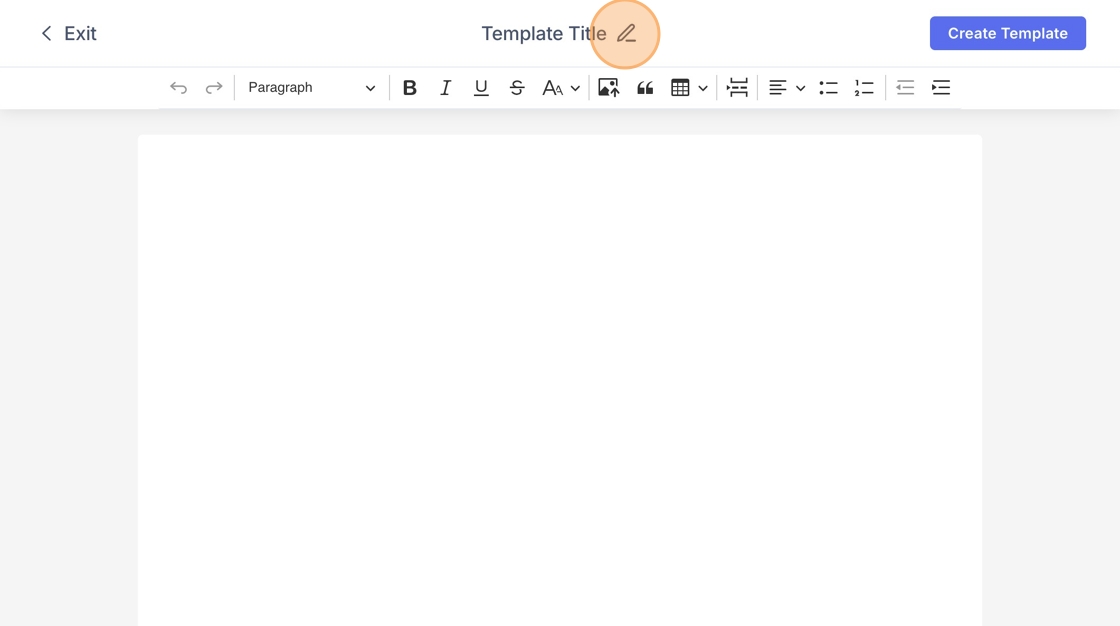
5. You can then use the editor toolbar to design the layout (fonts, tables, headings) or paste in any summary template you already have.

Tip: Tip! Use variables (e.g., report code, anonymity status) to automatically prepopulate fields with live data and reduce manual work.
6. To prepopulate a field, click 'View available variables' to see a list of data points (e.g., report code, reporter type, attributes).

7. Copy the variable you need and paste it into your template. When a snapshot is generated, these fields will automatically populate with live report data.

8. Once you have finished editing, click "Create Template".
