Linking Reports
Use this feature to connect related reports (e.g., duplicates, same incident, same person). Linking helps you spot patterns and manage cases more effectively.
1. Navigate to your admin site.
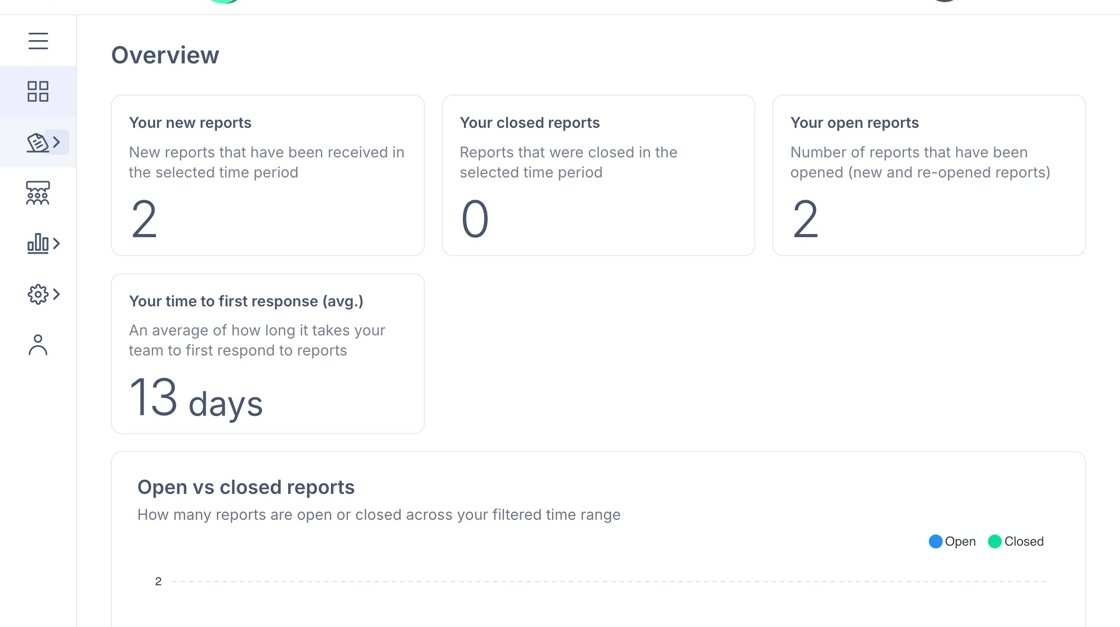
2. Click "Reports"

3. You’ll see a Linked Reports column showing if any reports are already linked.
Use the checkboxes beside the reports to select two or more reports you want to link.

4. A list of reasons will appear (e.g., Duplicate, Escalation of original case, Pattern of behaviour, Same location, Same person name, Same time frame).
Select the most appropriate reason.

5. In the "Any other comment (optional)" field, enter a short explanation (e.g., “Same reporter submitted twice about the same incident”).

6. Click "Link reports"

7. The reports are now shown as Linked in the dashboard, with the reason recorded.
You can see which reports are linked by clicking on the reason for linking under Linked Reports e.g. 'Duplicate' in this case.

8. In the Linked Reports section, you’ll see which reports it’s linked to and the reason.
