Manage Group Chats
How to share your report to other contacts
1. Click on the report you'd like to manage

Tip: Tip! Decide on who you would like to add to the reporter chats before you begin this process.
2. Click "Details"

3. Scroll down the page, and click "Manage"

4. Click the "Enter name or email address" field.

5. Select the other contacts you'd like to add to the chats.

6. Click "Share"
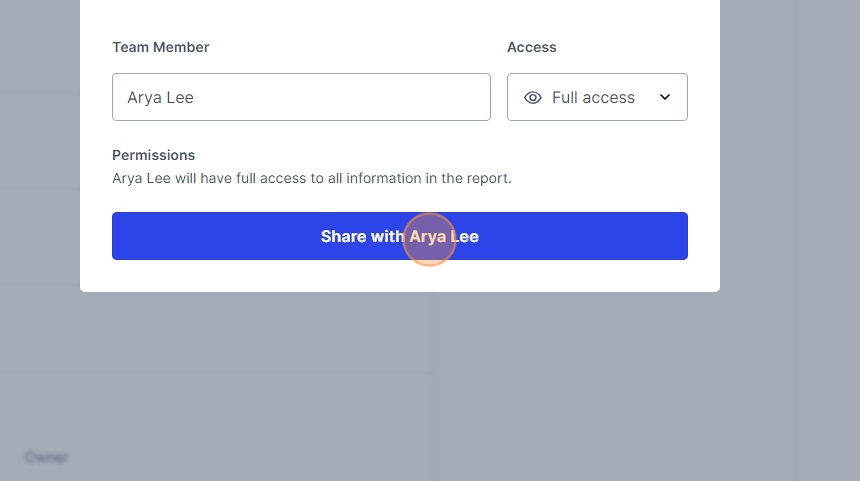
Alert: Alert! Be sure to only allow the new contact access to what they need to see. Full access will allow them to see all parts of the report.
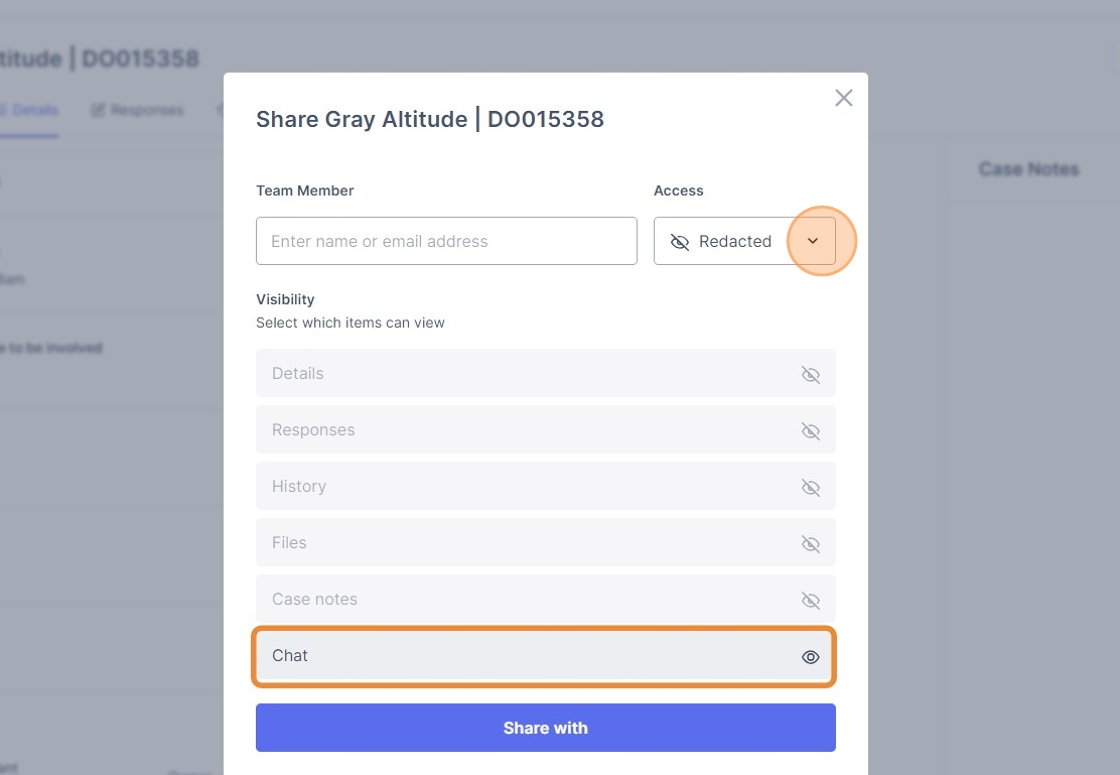
7. To allow a new contact to only see the chat, select Redacted from the drop down, de-select all options, keep "Chat" selected, and select "Share".
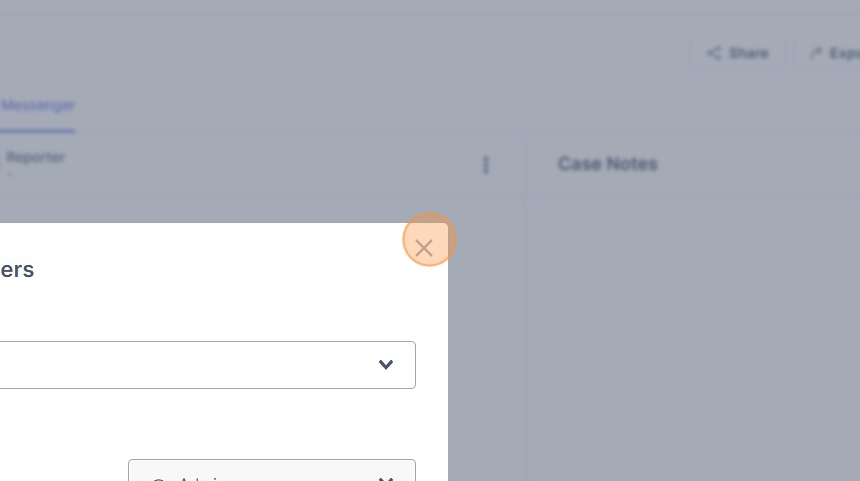
8. Click the X to exit the pop-up.

9. Click "Messenger"

How to create custom group chats
10. Click the drop down next to the pencil icon.

Alert: Alert! You can see by adding a new contact, they were automatically added to the existing chat with the reporter.
11. Click "Create chat"

12. Click "Create"

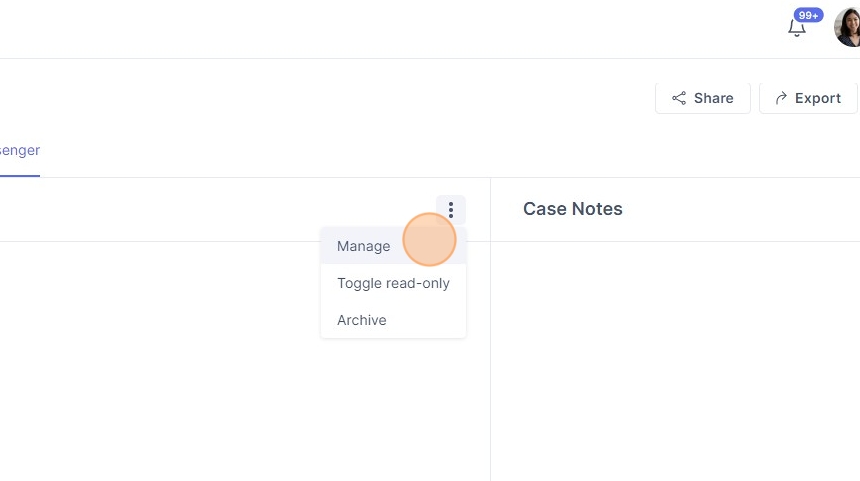
13. Click the three dots icon.

14. Click "Manage"

15. Click this search field.

16. Click the new contact you added to the report before.

Tip: Tip! You will be unable to see the contacts you want to add unless you have shared the report with them using steps above.
17. Click the "Select access" field.
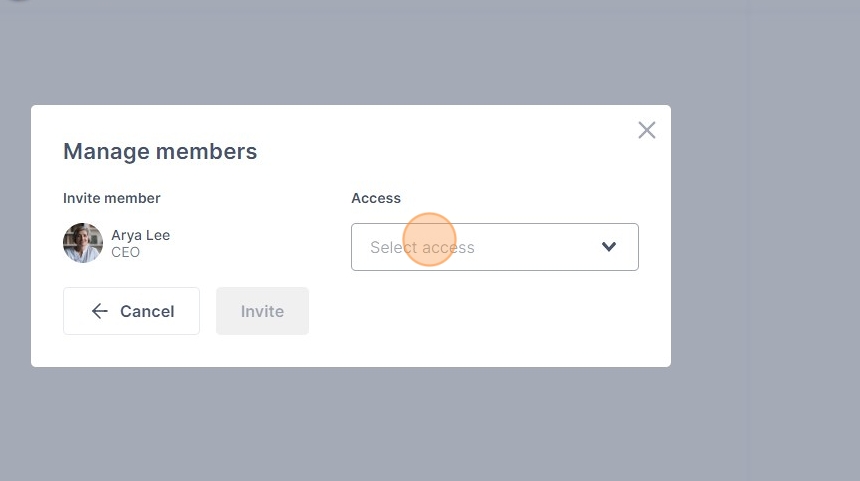
18. Click your access selection

Tip: Admin = can view previous chat history and add chat members
Show history = can view previous chat history
Hide history = can only see new texts sent to chat
19. Click "Invite"
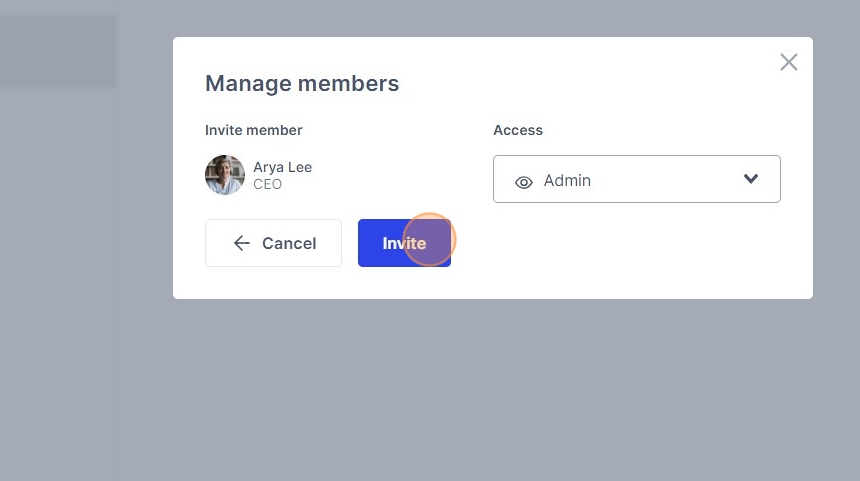
20. Click X to exit the pop-up.

How to create a private chat with the reporter
21. Click this button.

22. Click "Create chat"

23. Click "Create"
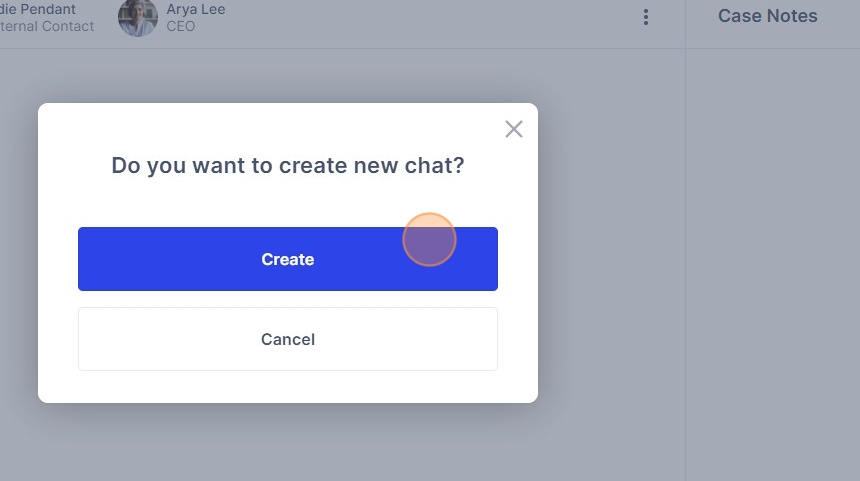
24. Click the three dots icon

25. Click "Manage"
26. Click this search field.

27. Click the reporter's name.

28. Click the "Select access" field.

29. Click your preferred access

Tip: Tip!
30. Click "Invite"

31. Click X the exit the pop-up.