Sending Messages and Using the Chat
How to send a message
1. Click "Reports"
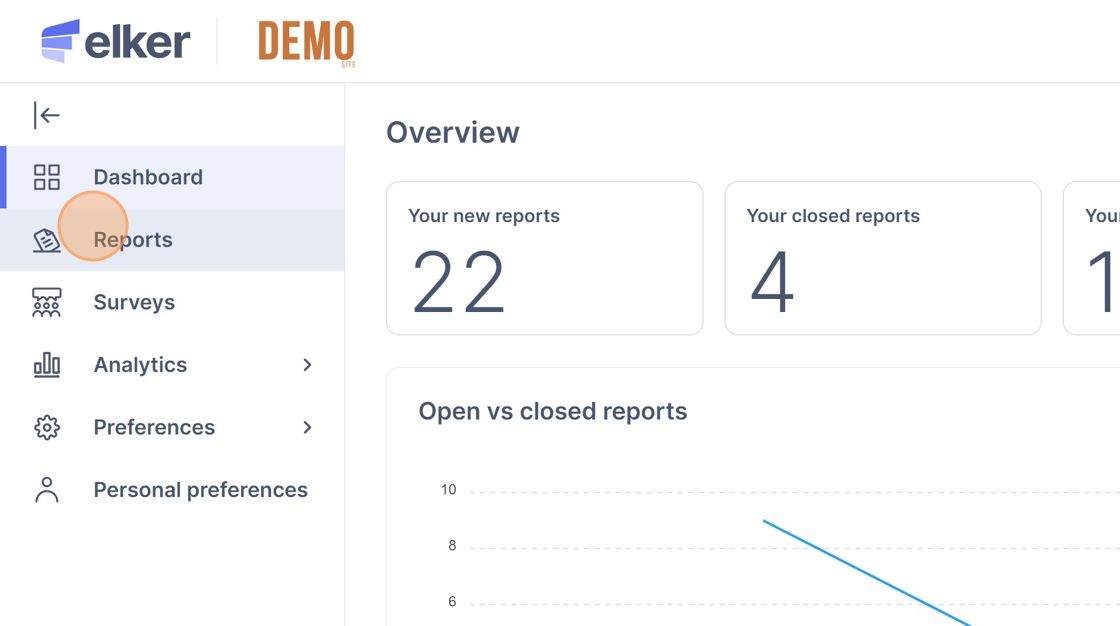
2. Click on the report you'd like to contact

3. Click "Messenger"

4. Click the "Type message" field.

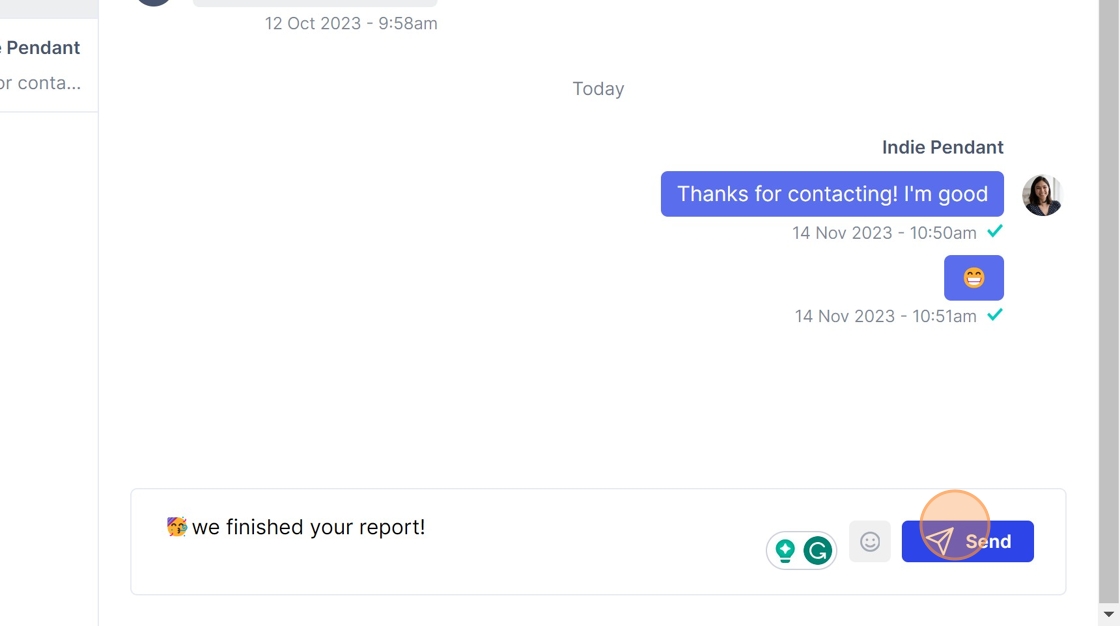
5. Enter your reply.
6. Click "Send"

How to add emojis
7. Click on the emoji icon.

8. Click the emoji you'd like to send.

9. Click "Send"

How to minimise case notes
Tip: Tip! Having trouble viewing the chat? Close the Case Notes tab to make more screen room.
10. Click the arrow next to Case Notes to minimise it.

How to search for specific emoji
11. Click on the emoji button.
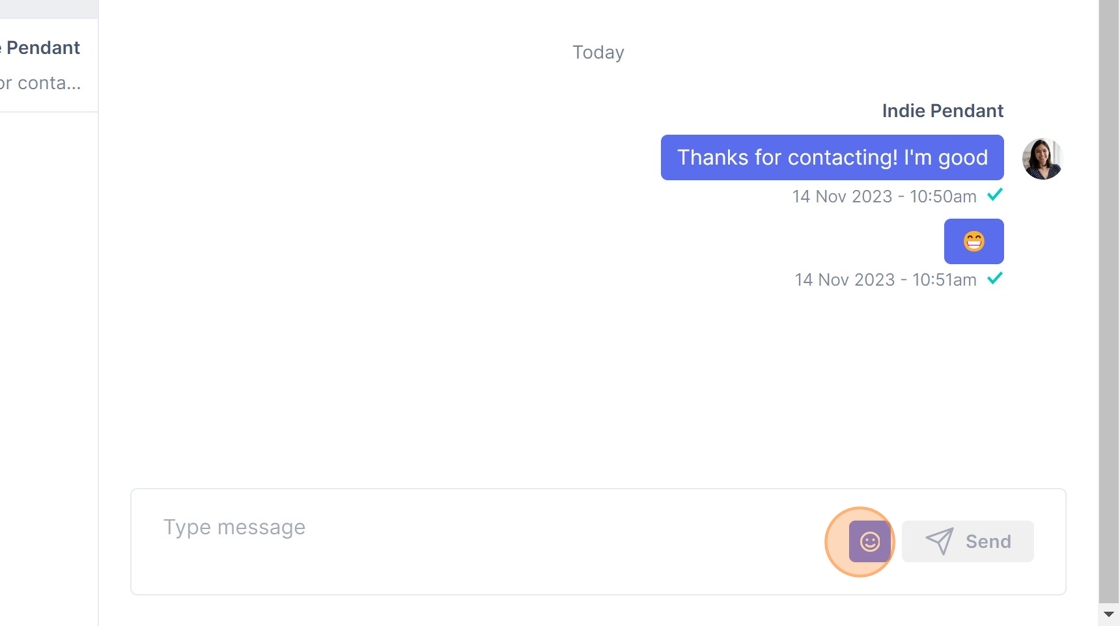
12. Click the "Search" field.

13. Type "party"
14. Click the emoji you'd like. You can also scroll down for more.
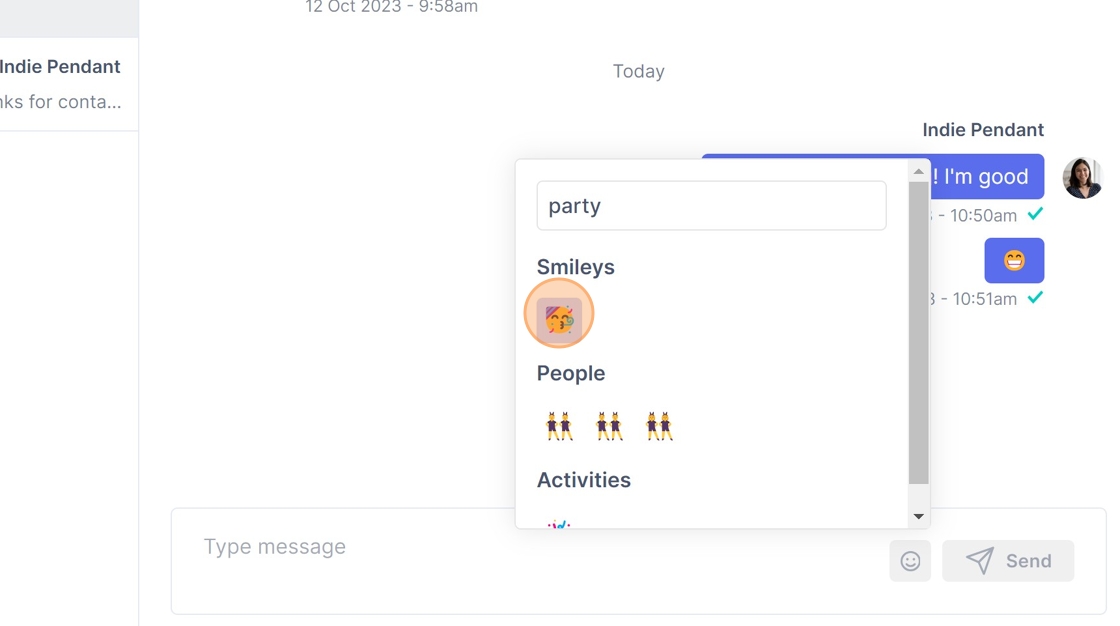
15. Click the "Type message" field to exit the pop-up.

16. Type in the rest of your message next to the emoji.
17. Click "Send"