Share and Manage Access to a Report
How to share a report and remove yourself from the report
1. Click on the Reports page

2. Click on the report you'd like to share

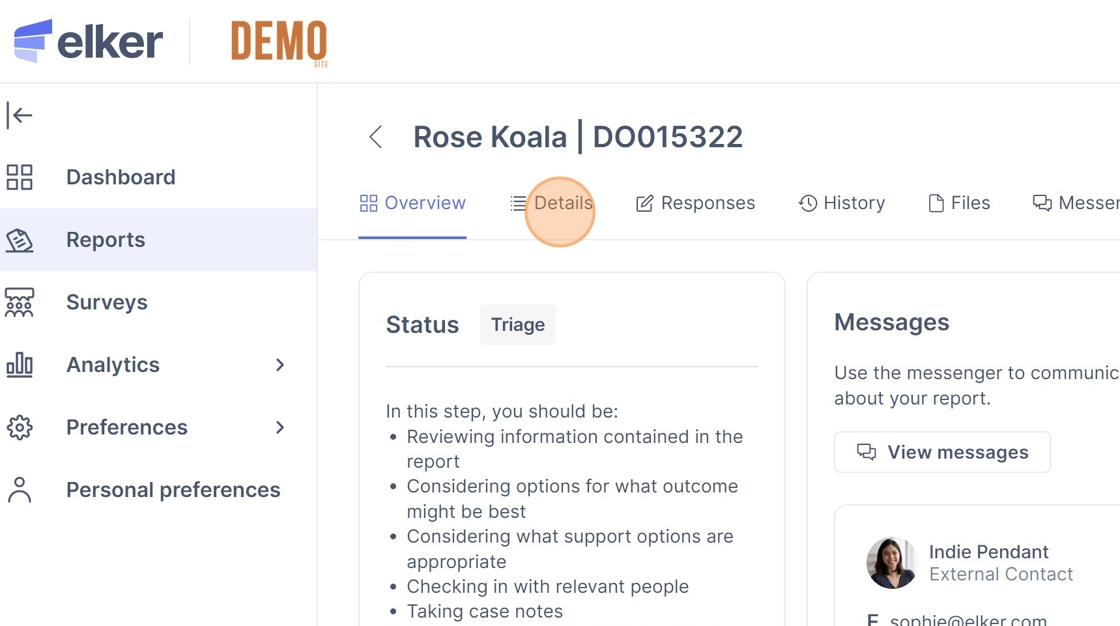
3. Click "Details"
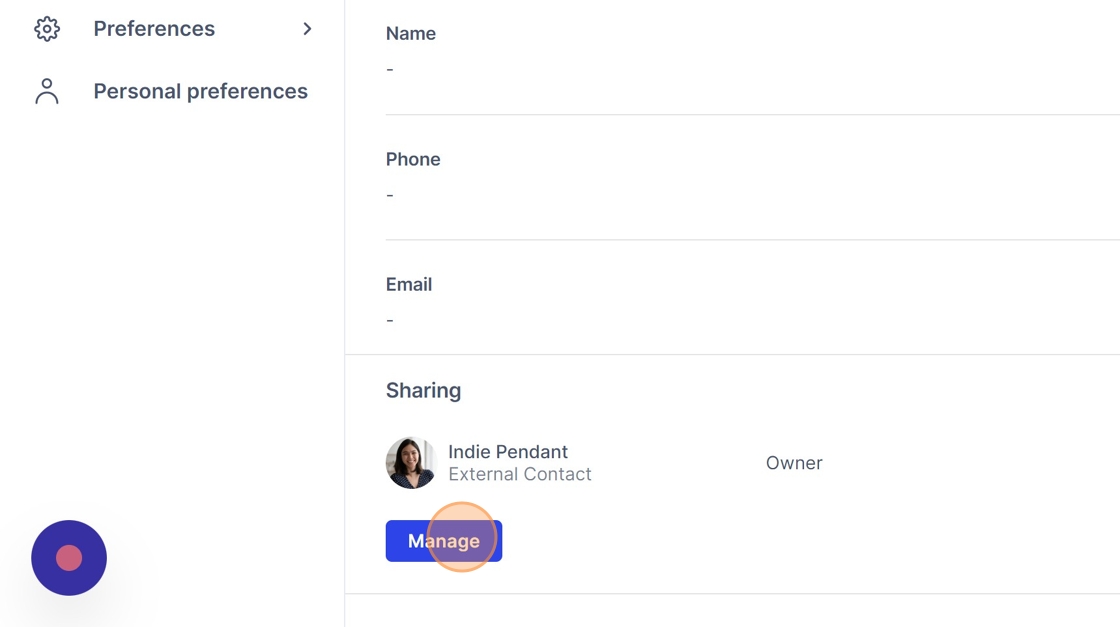
4. Scroll down and click "Manage"
5. Click the "Enter name or email address" field.

6. Select the person you'd like to share the report with

Alert: Alert! This person has to be a contact on the Elker platform
7. Click the Access drop down

8. Click "Owner"

9. Click "Share with [contact's name]"

10. Click the drop down next to your name

11. Click "Remove"

12. Click the X icon

13. Click "Reports"

14. Refresh your browser. You will no longer be able to see the report you removed yourself from.
How to share a report with limited access
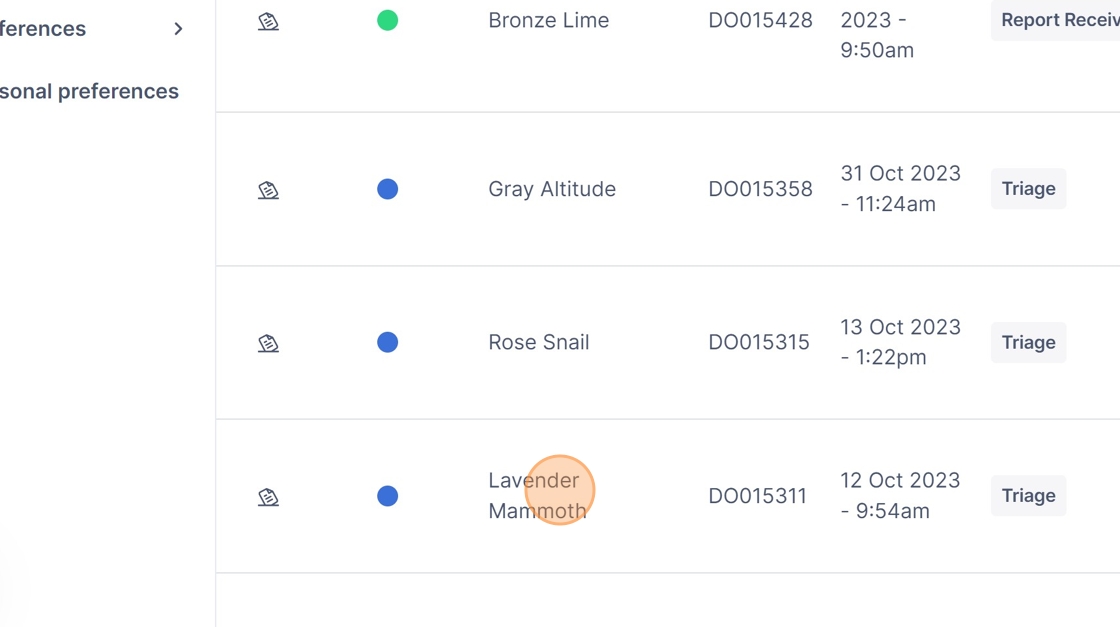
15. Click on the report you'd like to share.
16. Click "Details"

17. Scroll down and click "Manage"

18. Click the "Enter name or email address" field.

19. Click on the person you'd like to share the report with,

20. Click on the Access drop down.

21. Click "Redacted"


22. Deselect all the pages/functions you don't want the contact to have access to.

23. Deselecting more options.
24. Click "Share with [contact name]"

How to edit a contact's report access
25. Click "Manage"

26. Select/deselect the pages/functions you would like them to have access to.
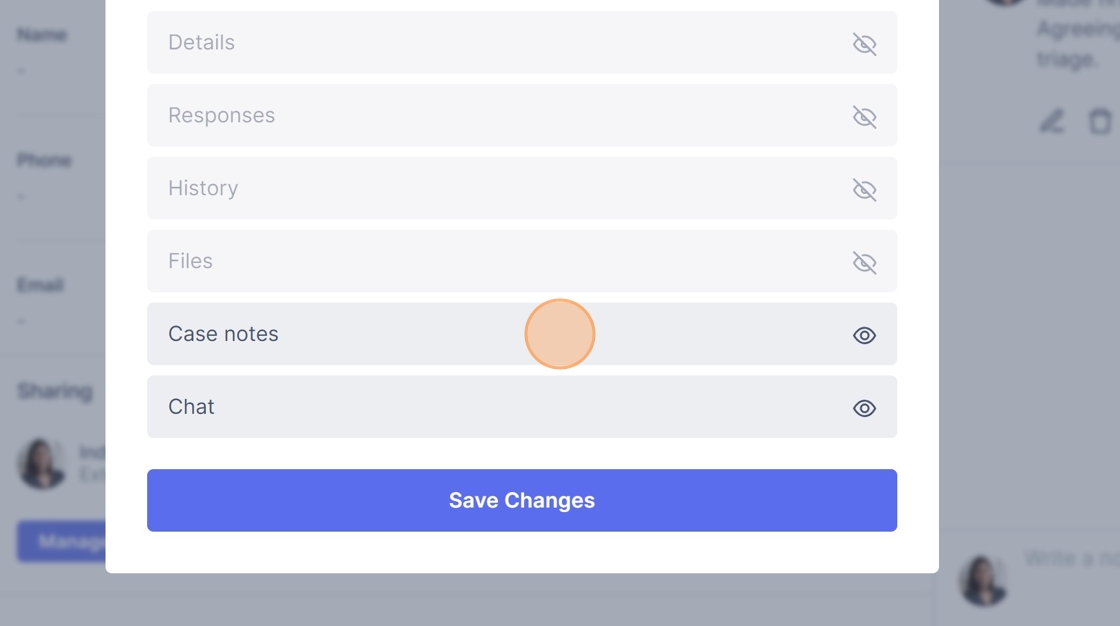
27. Click "Save Changes"

28. Click "Share"

Tip: Tip! Make sure to click Share as this saves your selections
How to remove a contact from a report after sharing with them
29. Click "Manage"

30. Click the "Enter name or email address" field.

31. Click here.

32. Click "Share with Charlie"

33. Click the drop down next to the contact's name

34. Click "Remove"
